預覽、發佈與分享

Power Apps 入門

Luise Freese

Azure & Power Platform Architect

Preview 與 Publish 的差異


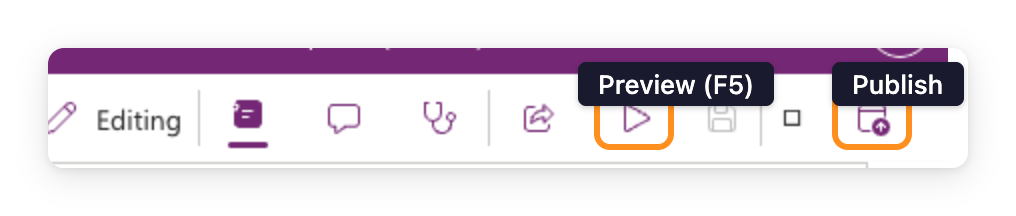
  • Preview:在 Studio 只給你自己執行
  • Publish:把已儲存版本上線給共享對象
  • 兩個不同動作在兩個不同按鈕上

$$

Power Apps Studio 工具列的實際螢幕截圖,顯示並排的 Preview(播放三角形)與 Publish 圖示,中間是 Save(軟碟)圖示

Power Apps 入門

版本歷程


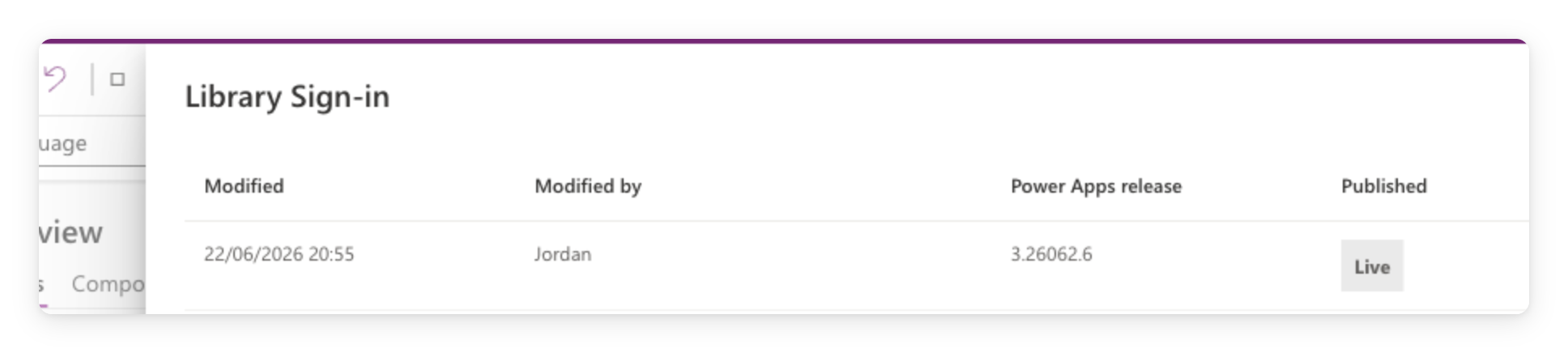
  • 每次發佈都會建立新版本
  • 版本歷程是你的安全網
  • 一鍵還原較早版本

$$

Power Apps Studio 版本歷程面板的實際螢幕截圖,顯示已儲存版本及其修改日期、作者、發行與 Published 狀態

Power Apps 入門

發佈前先執行 App checker


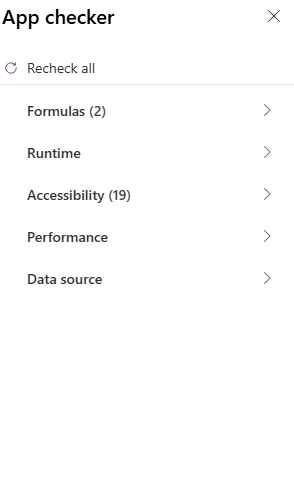
  • 發佈前的固定流程
  • 檢查兩個分頁:Formulas+Accessibility
  • 不要帶著錯誤出貨


Power Apps Studio 中開啟的 App Checker 面板,顯示分類清單:Formulas、Runtime、Accessibility、Performance、Data source

Power Apps 入門

分享

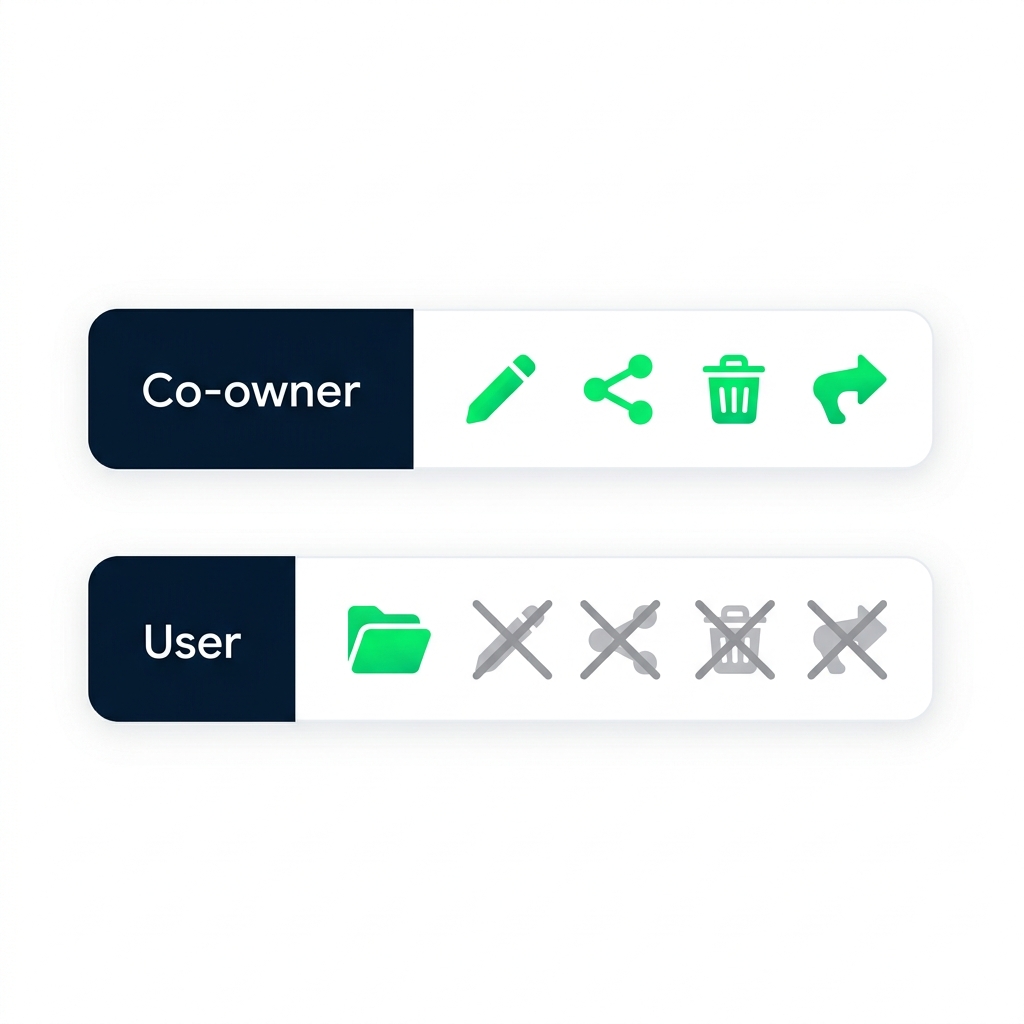
比較共同擁有者與使用者權限的圖示:共同擁有者可編輯、分享、刪除、發佈;使用者只能開啟並使用應用程式。


  • Co-owner:可edit、share、delete、publish
  • User:只能開啟並使用,無其他權限

$$

選能完成工作的最低權限。

Power Apps 入門

分享其實做了什麼


  • 分享是授與存取權,不是複本
  • 使用者看到的是最新已發佈版本
  • 取消分享=在下次嘗試開啟時撤銷


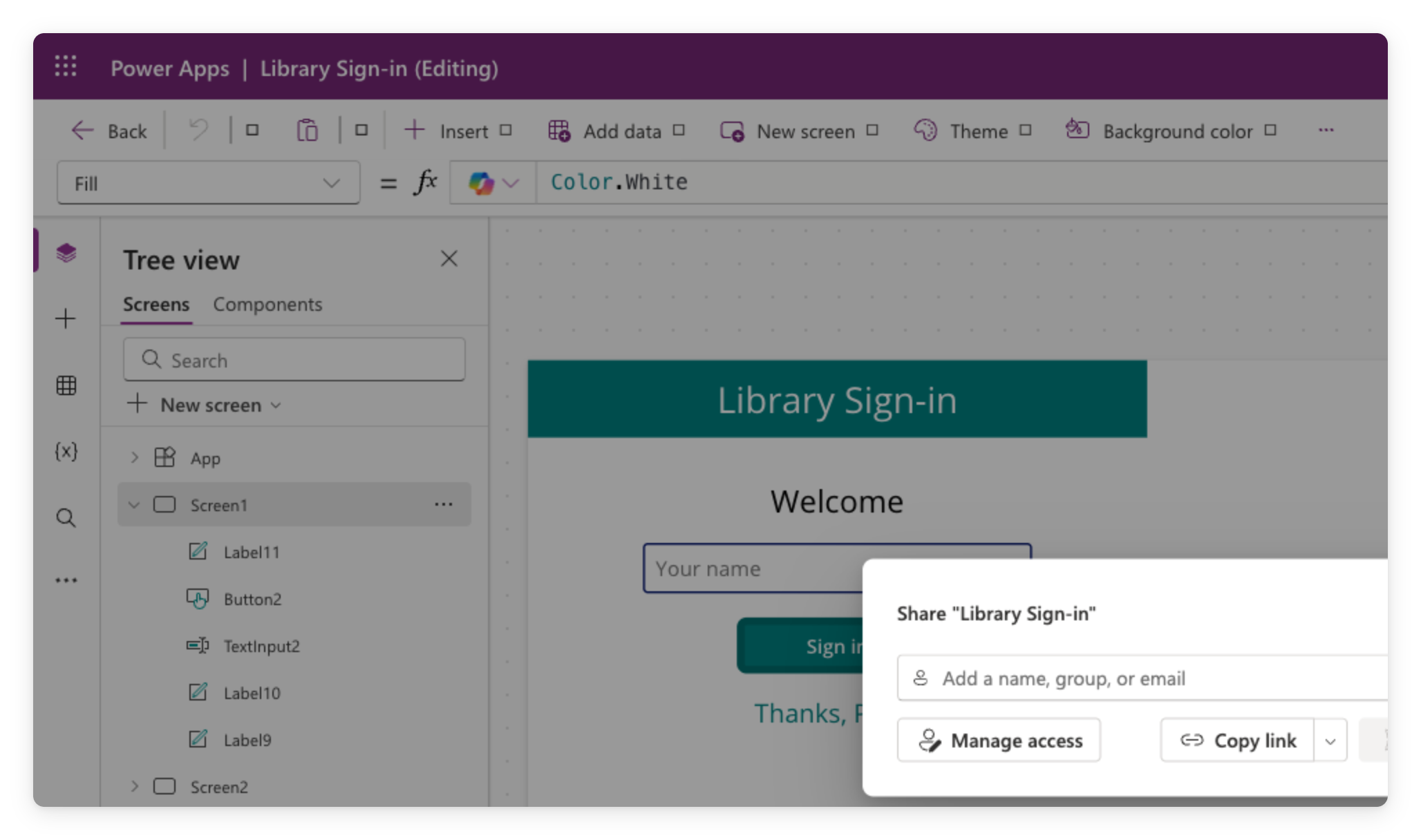
Power Apps 的 Share 對話框,輸入姓名或電子郵件並指派權限後即可分享應用程式

Power Apps 入門

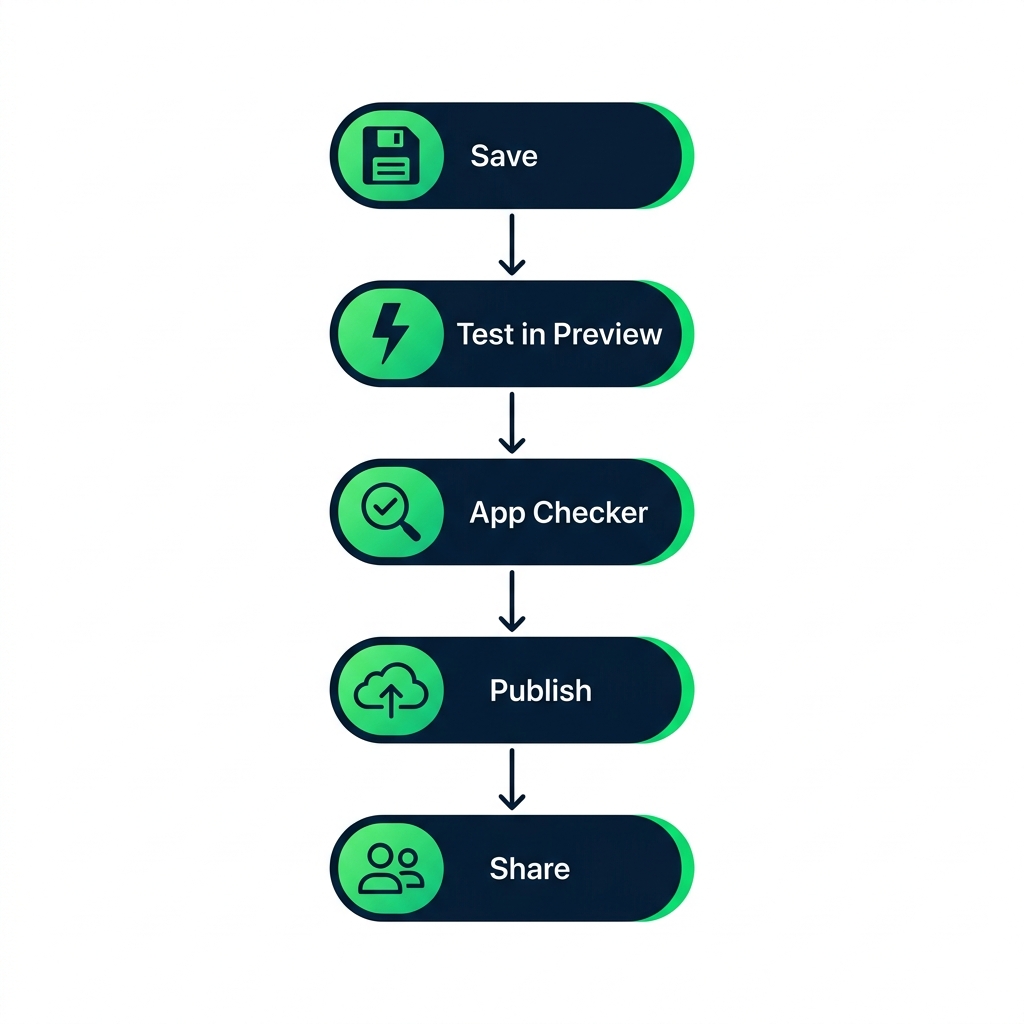
發佈流程

發佈流程示意:Save、在 Preview 測試、執行 App Checker、Publish,然後 Share。

Power Apps 入門

下一步


  • 端到端預覽應用程式
  • 發佈並檢查版本歷程
  • 了解分享的權限層級

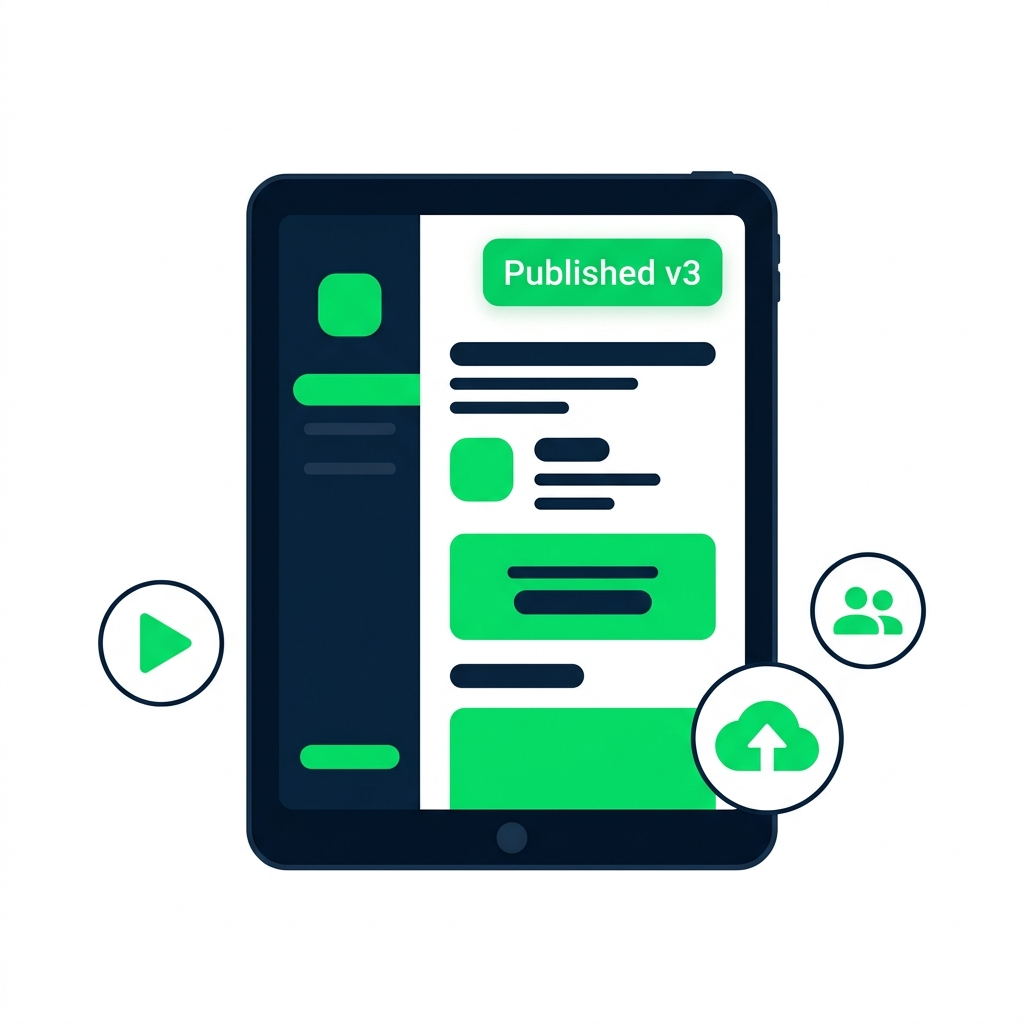
已發佈應用程式的插圖,畫面周圍有預覽、發佈與分享動作的圖示。

Power Apps 入門

一起來練習吧!

Power Apps 入門

Preparing Video For Download...