表單與資料輸入

Power Apps 入門

Luise Freese

Azure & Power Platform Architect

Edit form 控制項
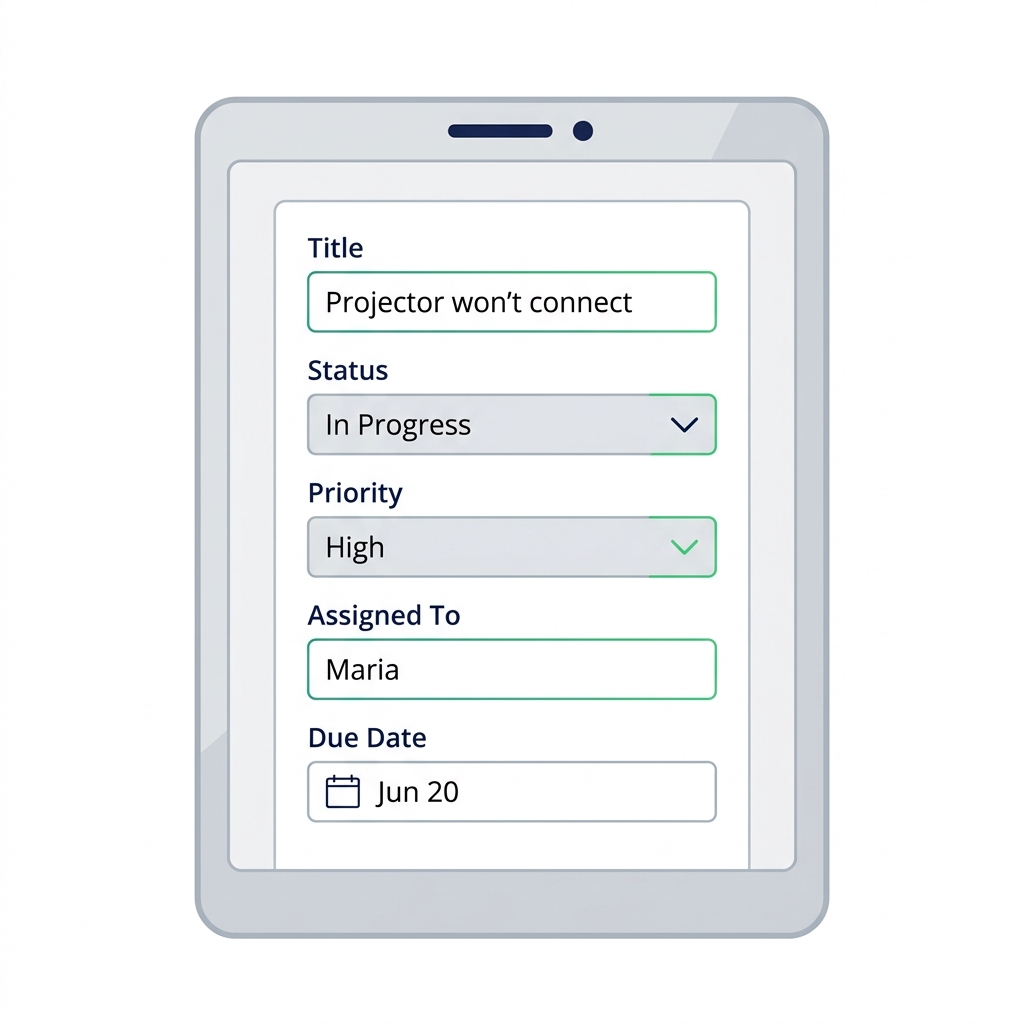
 

  • Insert → Edit form
  • 將 DataSource 設為你的 tickets 清單
  • Power Apps 會為每個欄位自動產生一張卡片

平板上的 Power Apps Edit Form,含 Title、Status、Priority、Due Date 輸入卡片。

Power Apps 入門

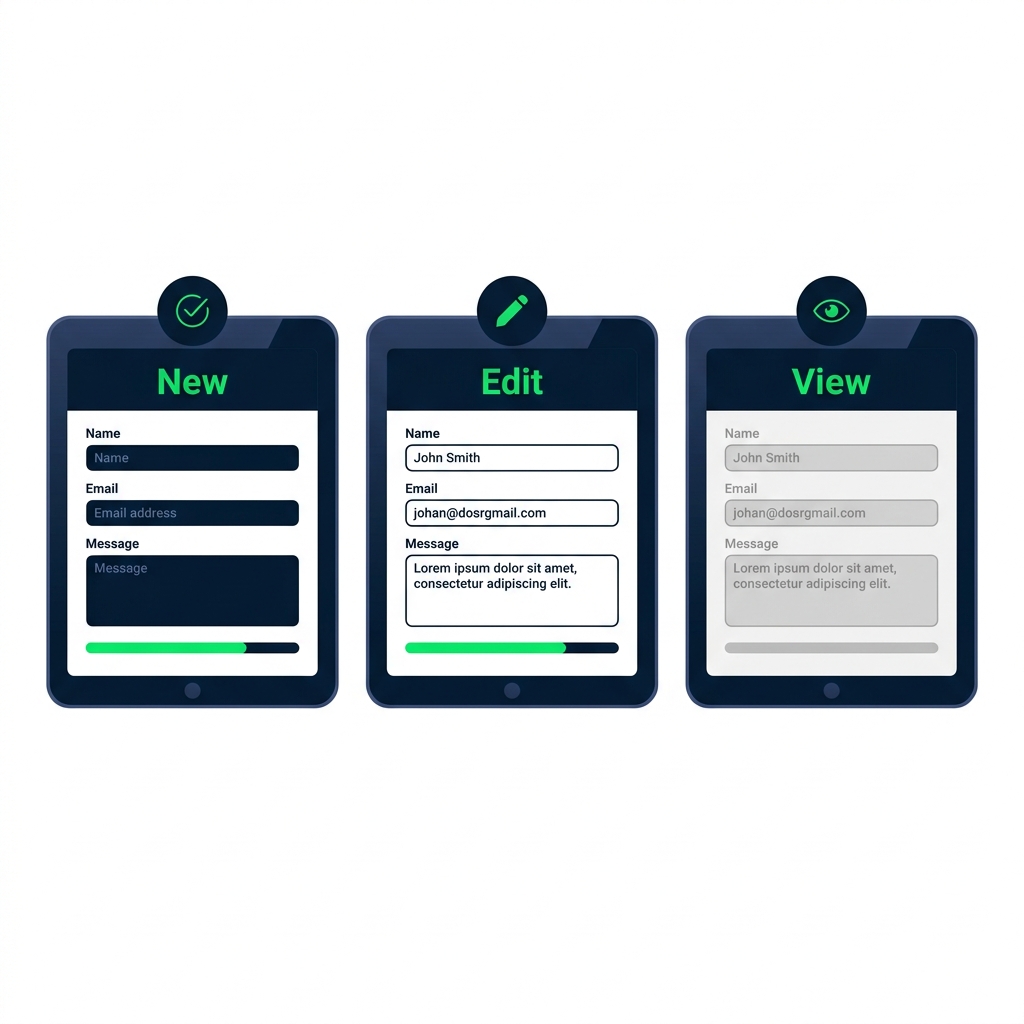
表單模式:New / Edit / View

三種 Edit Form 狀態並列:空白的 FormMode.New、預先填入的 FormMode.Edit,以及唯讀的 FormMode.View。


  • FormMode.New:空白表單,可建立新列
  • FormMode.Edit:已載入既有列
  • FormMode.View:唯讀顯示
Power Apps 入門

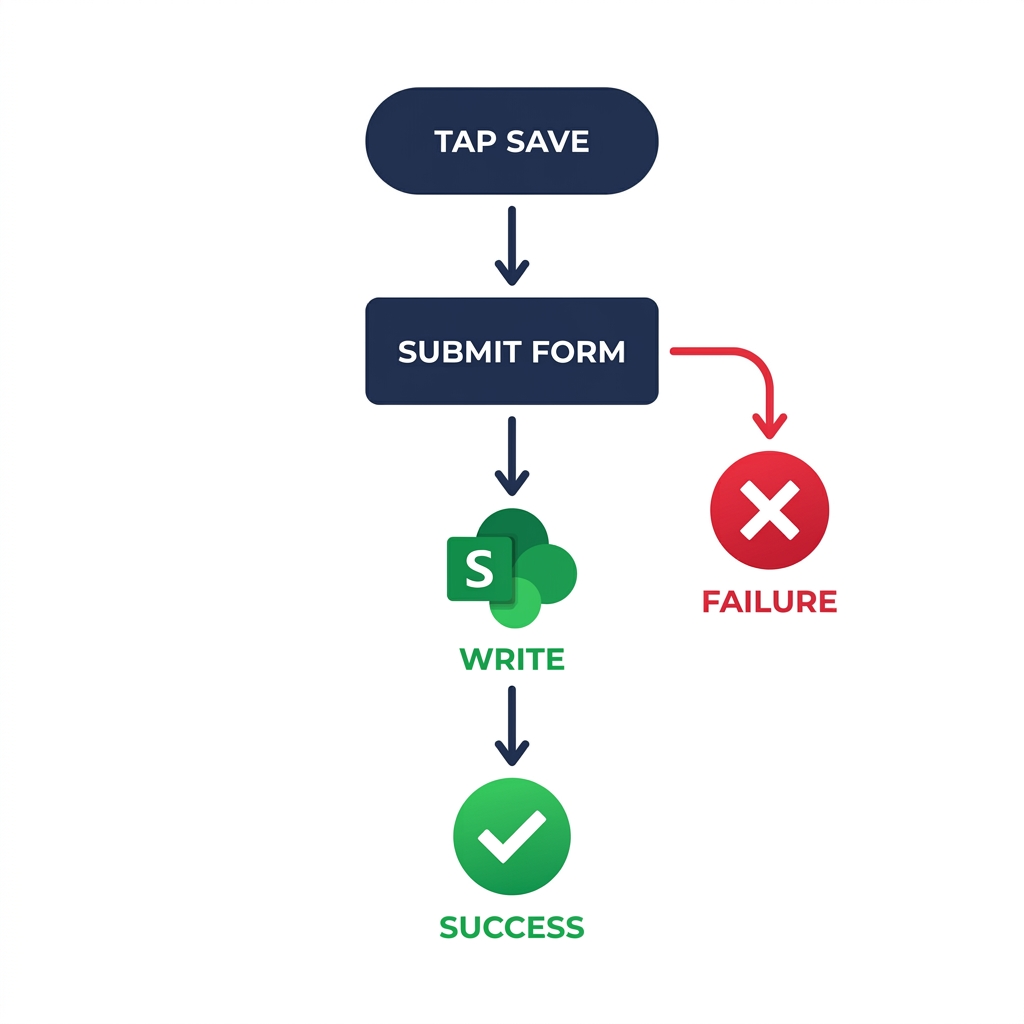
SubmitForm() 與生命週期


  • 儲存按鈕會執行 SubmitForm(frmTicket)
  • Power Apps 會驗證並寫入資料來源
  • 表單會觸發 OnSuccess 或 OnFailure

流程圖:從點擊儲存到 SubmitForm()、寫入 SharePoint、OnSuccess 打勾,以及 OnFailure 錯誤分支。

Power Apps 入門

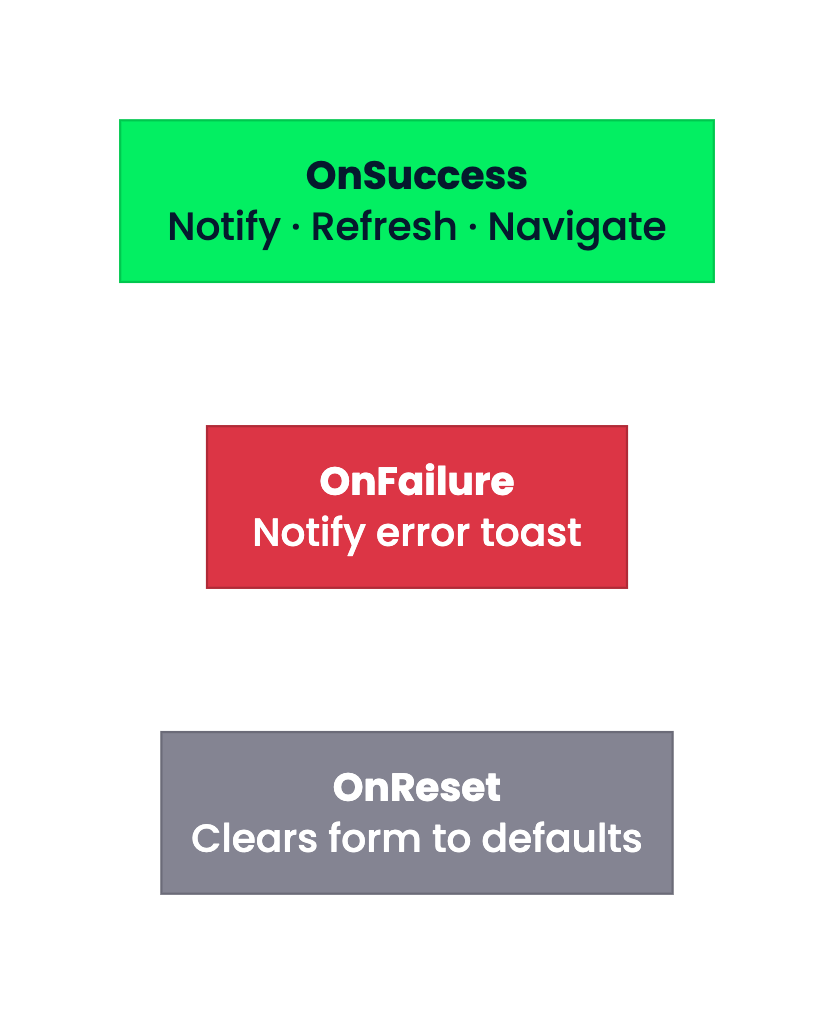
OnSuccess、OnFailure、OnReset

三個顏色區塊自上而下:綠色 OnSuccess 含 Notify、Refresh、Navigate;紅色 OnFailure 含錯誤 Notify;灰色 OnReset 清為預設。


  • OnSuccess:顯示 toast,refresh 畫廊,並導回上一頁
  • OnFailure:顯示錯誤 toast
  • OnReset:在表單清除時執行
Power Apps 入門

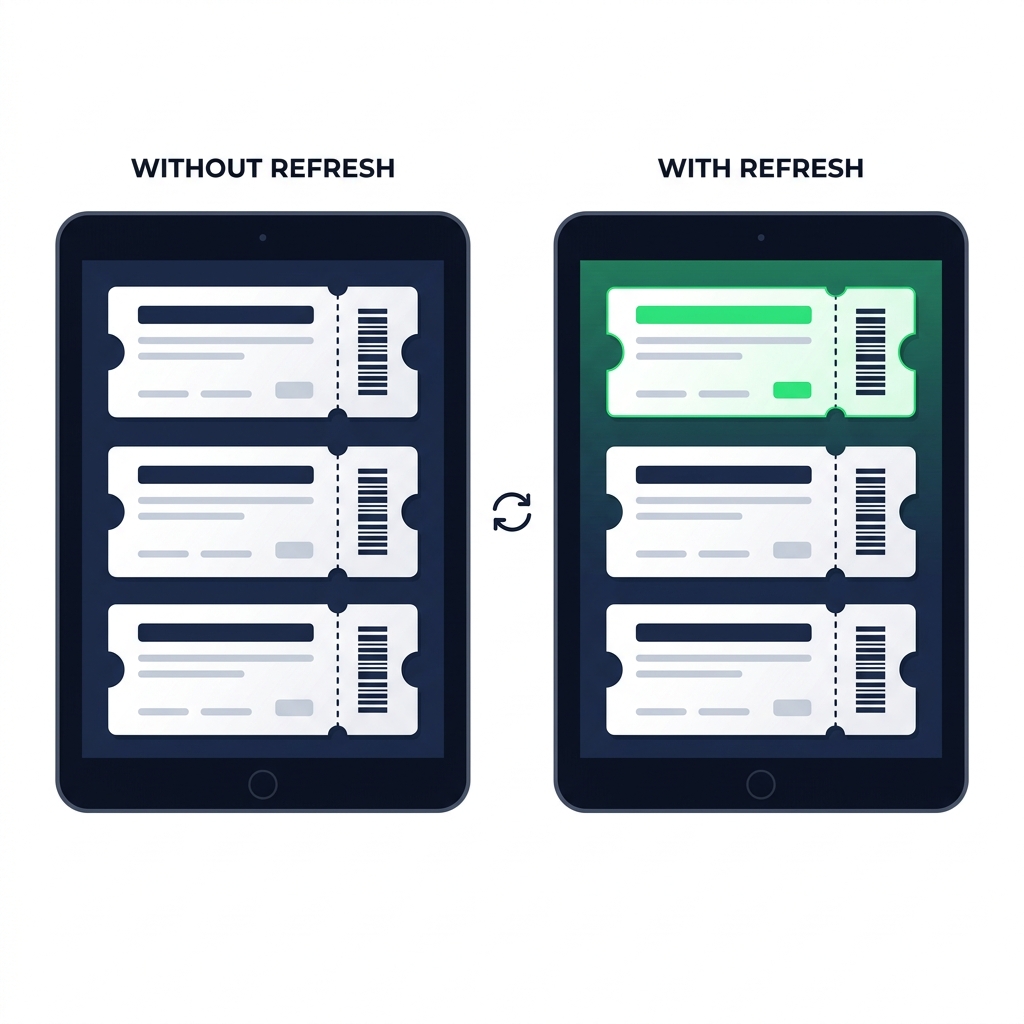
Refresh():常被遺忘的一步


  • 畫廊在送出後不會自動更新
  • 在表單的 OnSuccess 加上 Refresh(Tickets)
  • 否則新列看起來像不見了

兩台平板並列:左為未 Refresh 的畫廊,新 ticket 缺失;右為已 Refresh,新的 ticket 高亮顯示於頂端。

Power Apps 入門

ResetForm():取消流程

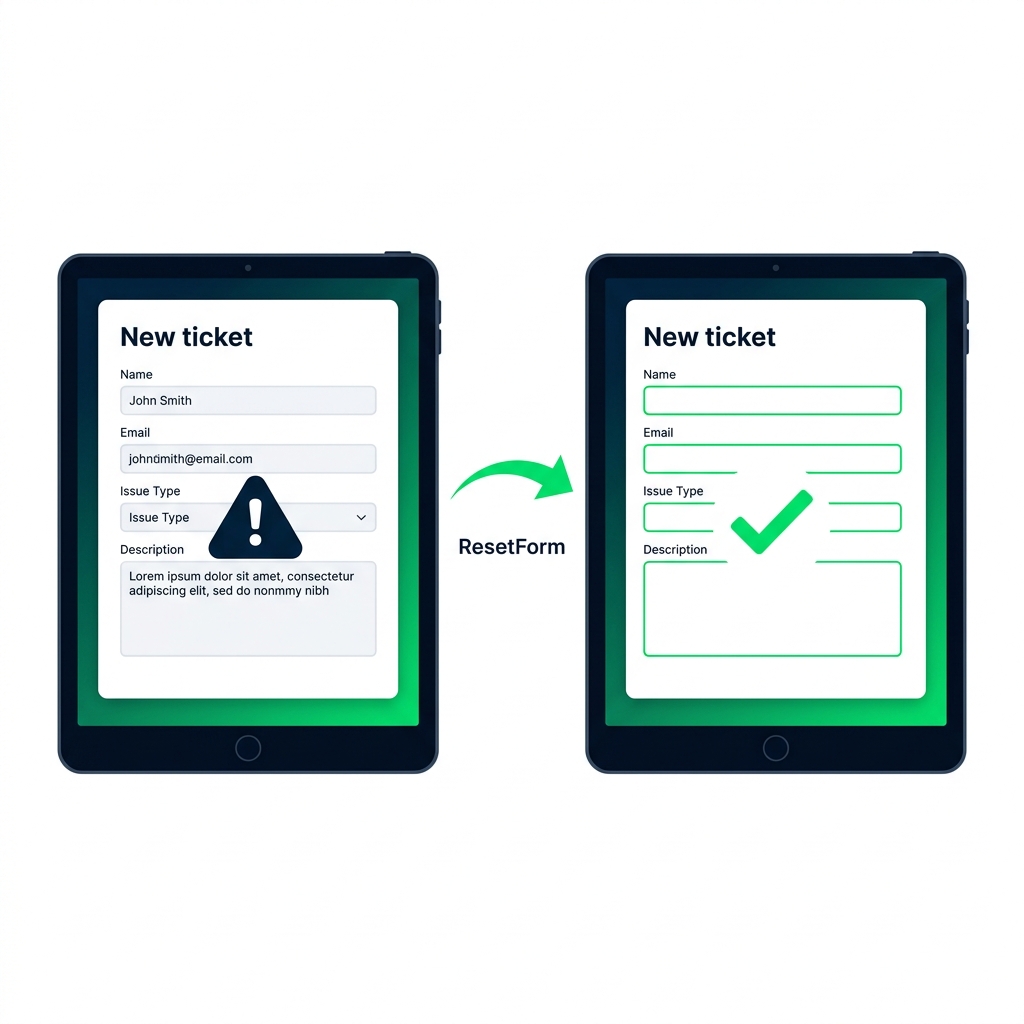
兩個 New 表單:ResetForm() 前殘留資料,重設後為可輸入的空白表單。


  • ResetForm(frmTicket) 會清空所有欄位
  • 放在 Cancel 按鈕上,絕不要放在 OnSuccess
  • OnSuccess 已會導頁,NewForm 下次會清空表單
Power Apps 入門

Patch()


  • Patch(DataSource, record, changes) 可在無表單下寫入
  • 適合批次更新或單欄位變更
  • 進階工具,超出本課範圍

$$

Patch(
  Tickets,
  ThisItem,
  { Status: "Resolved" }
)
Power Apps 入門

你將練習的內容

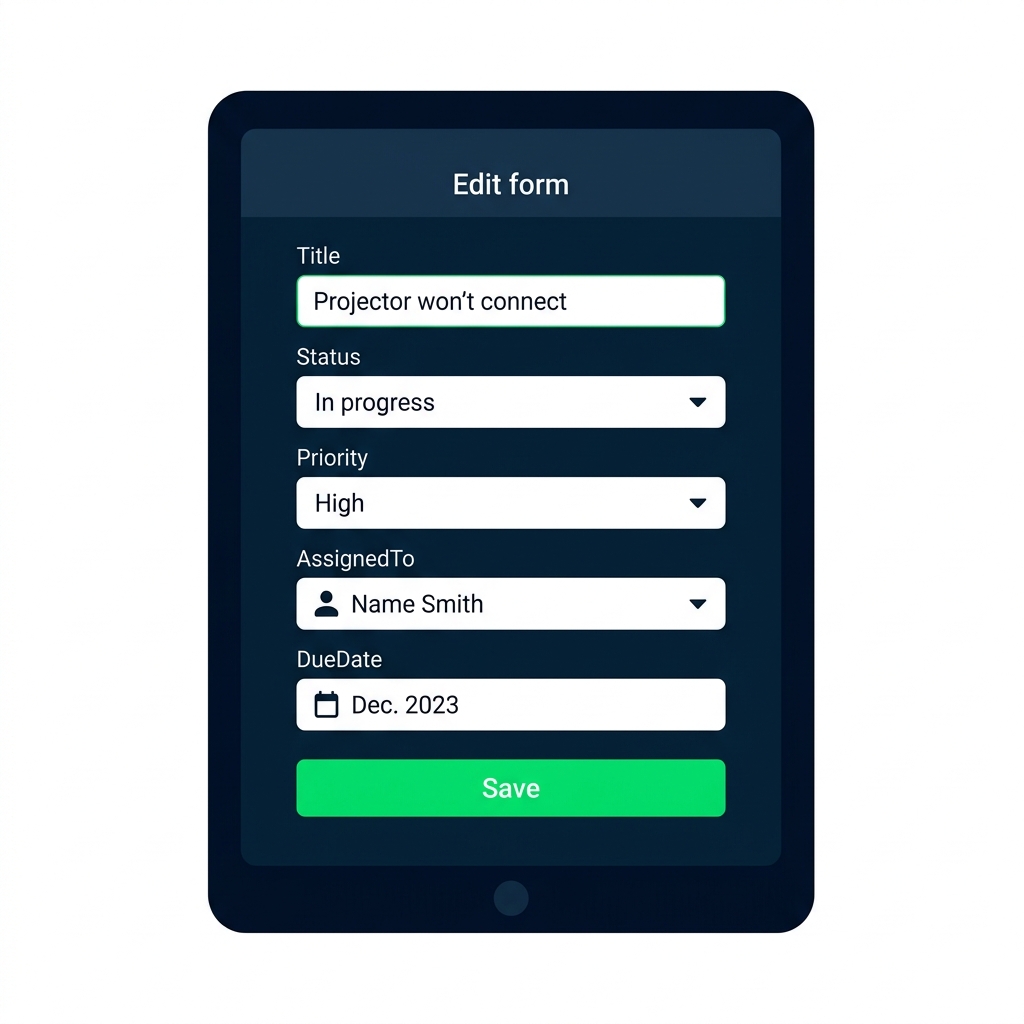
Edit Form,預填 ticket 欄位、下拉、人物挑選、DueDate,底部有綠色 Save 按鈕。


  • Edit Form 如何繫結資料來源並建立卡片
  • 送出後成功與失敗會發生什麼事
  • New 與 Cancel 按鈕如何完成表單生命週期
Power Apps 入門

一起來練習吧!

Power Apps 入門

Preparing Video For Download...