篩選與搜尋資料

Power Apps 入門

Luise Freese

Azure & Power Platform Architect

Filter()


  • Filter(source, condition) 回傳符合的列
  • 用在 gallery 的 Items 屬性
  • 例如:

    Filter(Tasks, Status = "In progress")

資料漏斗將多列資料過濾成少量符合結果的示意圖

Power Apps 入門

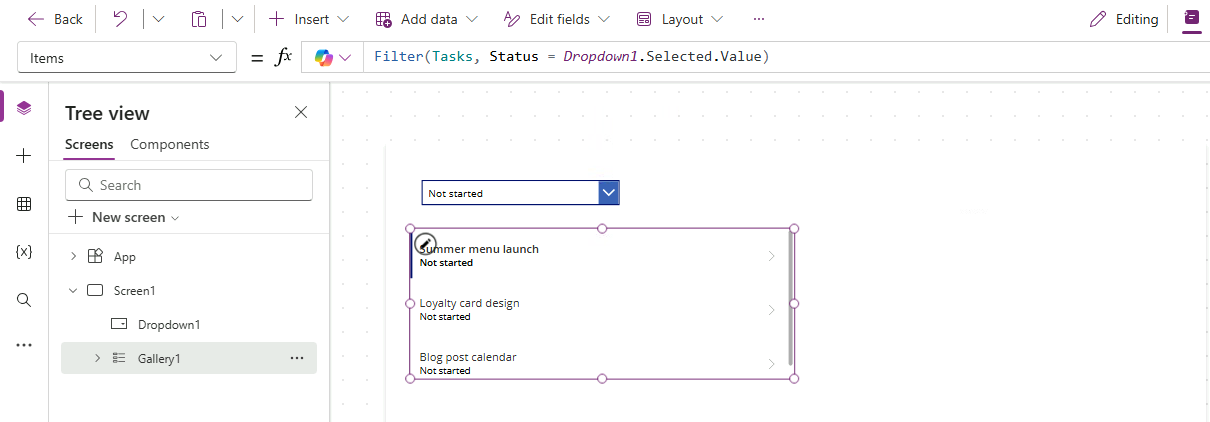
接到下拉選單

$$

Power Apps Studio:上方為狀態下拉選單(設為 Not started),下方為 gallery;gallery 的 Items 公式為 Filter(Tasks, Status = Dropdown1.Selected.Value),因此只顯示 Not started 的工作


  • 將 Dropdown 的 Items 設為狀態清單
  • 在 gallery 篩選中引用 Dropdown1.Selected.Value
  • 選一個狀態 → gallery 立即縮小範圍
Power Apps 入門

StartsWith 與 Search


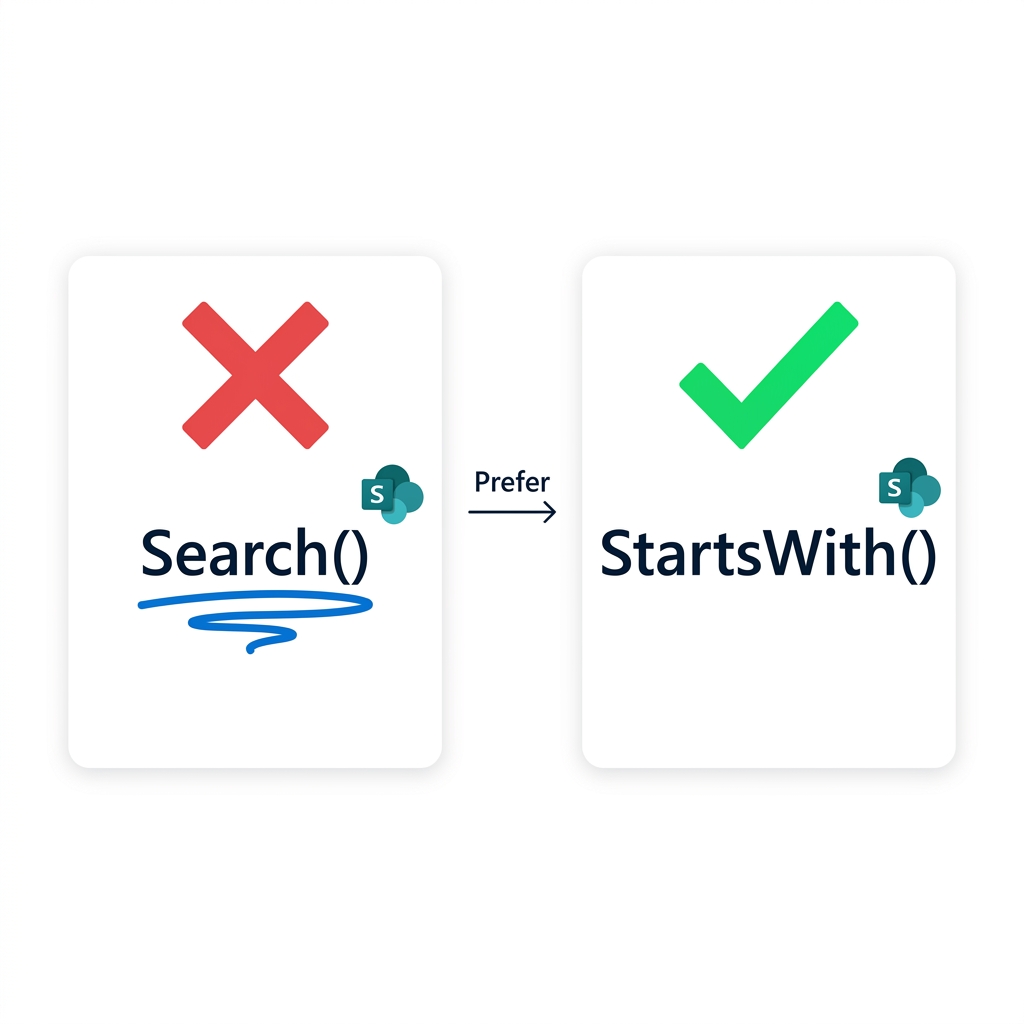
  • Search() 比對子字串,出現於任何位置
  • 但對多數資料來源無法委派
  • StartsWith() 可委派

比較:Search() 帶紅色叉與委派警示波浪線;StartsWith() 帶綠色勾且無警示,箭頭標示「Prefer」

Power Apps 入門

委派警示

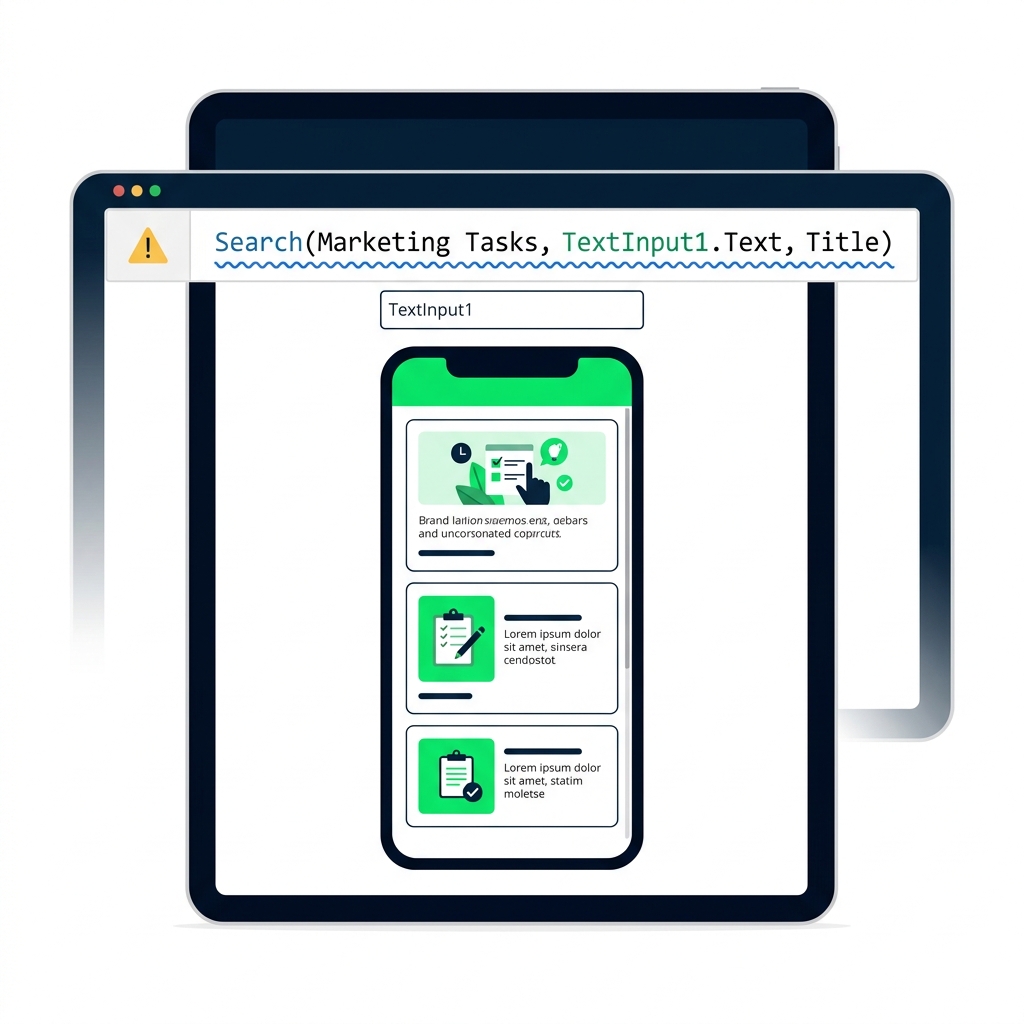
Power Apps 公式列顯示藍色波浪線委派警示底線,並有黃色工具提示「Delegation warning: results may be incomplete」


  • 出現藍色波浪線代表 Power Apps 無法將你的公式下推
  • 小型資料集可行,大型資料集會悄悄截斷
  • 一定要留意;能改寫就改寫
Power Apps 入門

結合 Filter 與 StartsWith


  • 一個 Filter() 可接 多個條件
  • 以逗號分隔,需全部符合
  • 例如:

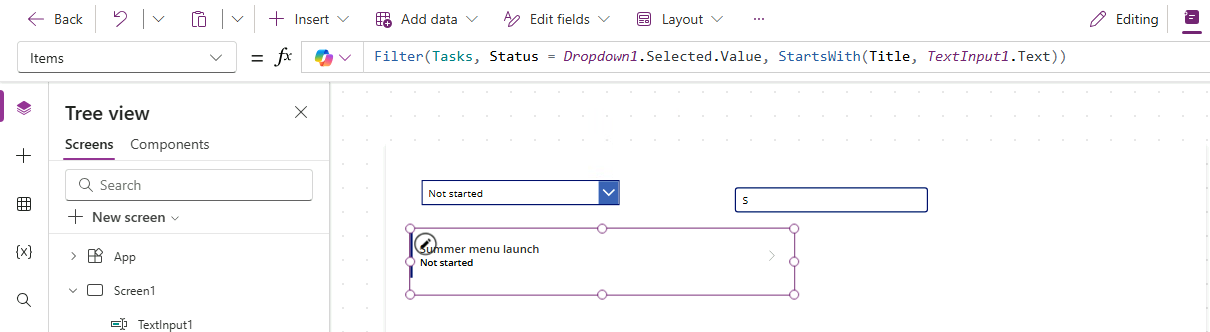
Filter(src, Status = sel, StartsWith(Title, txt))


$$

Power Apps Studio:狀態下拉選單與搜尋框在 gallery 上方;gallery 的 Items 公式為 Filter(Tasks, Status = Dropdown1.Selected.Value, StartsWith(Title, TextInput1.Text)),將清單縮小到唯一符合的工作

Power Apps 入門

你將完成的內容

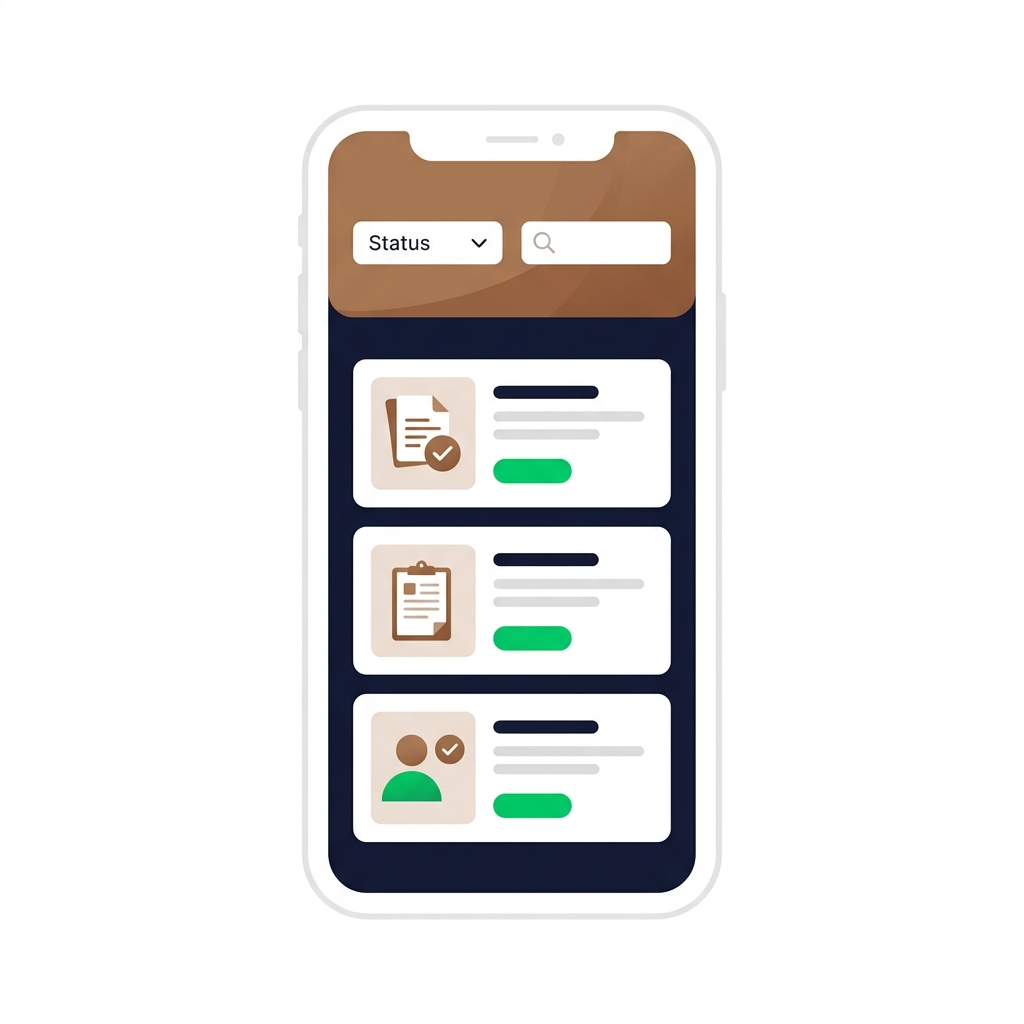
完成的 Lumen 應用:狀態下拉選單與搜尋框在已過濾的任務卡片 gallery 上方,配色為溫暖咖啡色調


  • 用 Dropdown 依狀態篩選
  • 用 StartsWith 依標題搜尋
  • 兩者合併成單一篩選
Power Apps 入門

一起來練習吧!

Power Apps 入門

Preparing Video For Download...