डेटा सोर्स और कनेक्टर्स

Power Apps परिचय

Luise Freese

Azure & Power Platform Architect

वे शब्द जो सब गड़बड़ा देते हैं
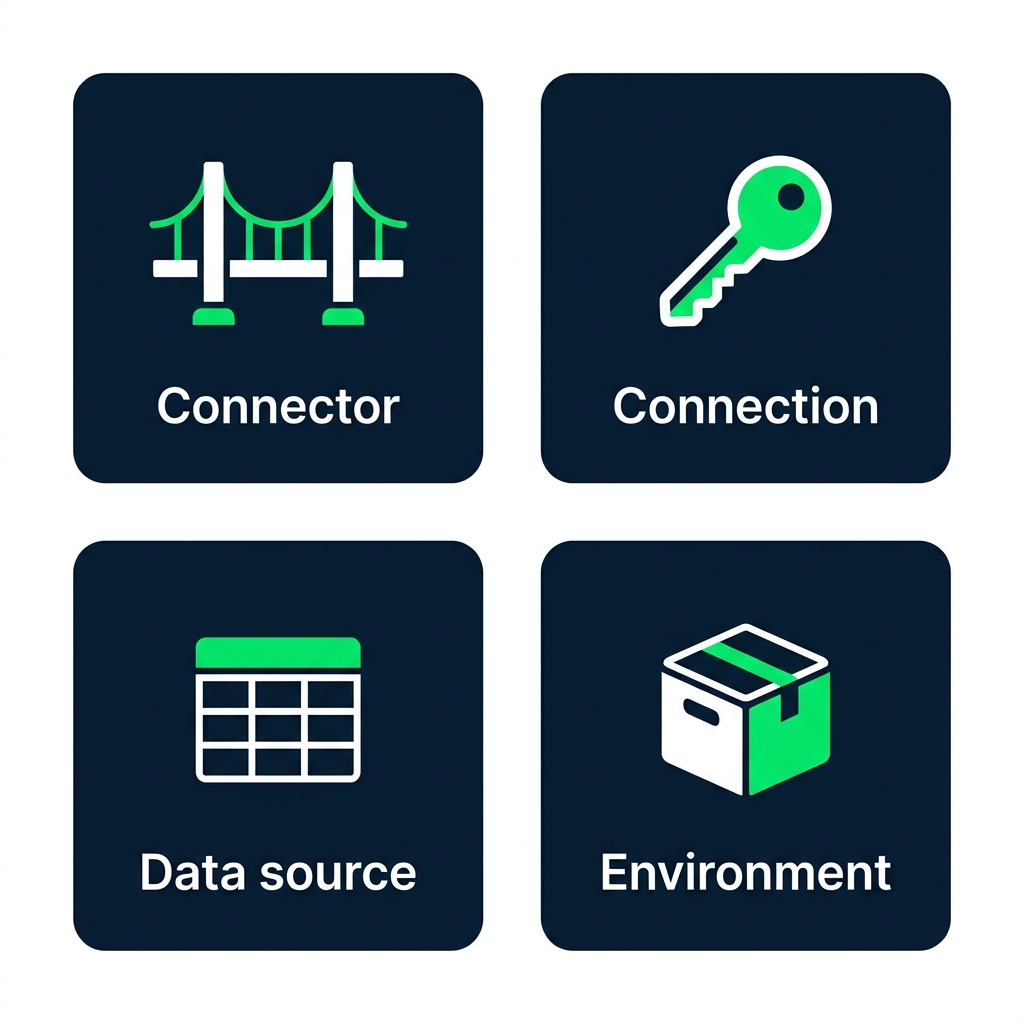
 

  • Connector, वह bridge (SharePoint, Excel...)
  • Connection, उस bridge के लिए आपका खास sign-in
  • Data source, वह table जिस पर आपका app पॉइंट करता है
  • Environment, वह space जहाँ आपका app और डेटा रहते हैं

चार लेबल वाले कार्ड्स का डायग्राम: Connector (bridge आइकन), Connection (key आइकन), Data source (table आइकन), और Environment (container आइकन)

Power Apps परिचय

Standard बनाम Premium

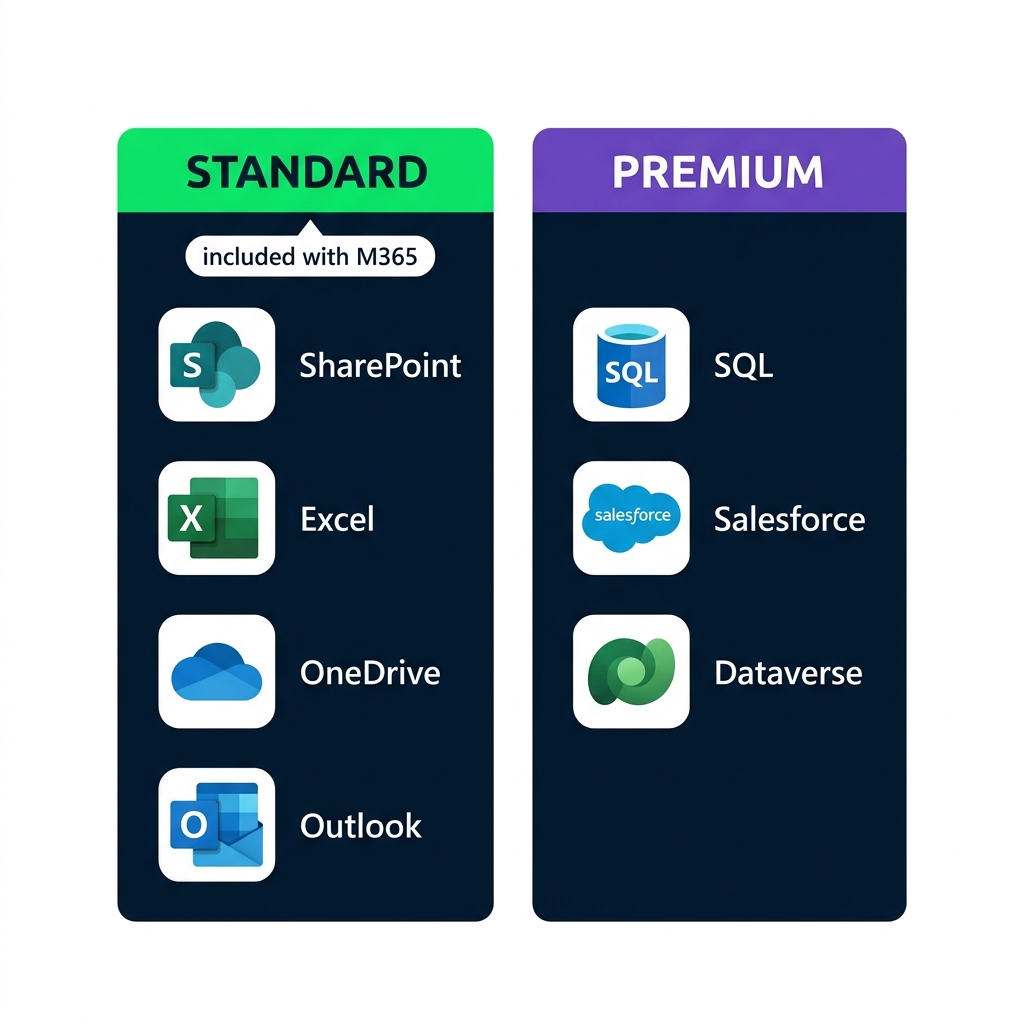
Standard कनेक्टर्स (SharePoint, Excel, OneDrive, Outlook, M365 में शामिल) बनाम Premium कनेक्टर्स (SQL Server, Salesforce, Dataverse) की तुलना


  • Standard connectors Microsoft 365 के साथ आते हैं
  • Premium connectors के लिए add-on license चाहिए
  • इस कोर्स में सिर्फ Standard इस्तेमाल होगा
Power Apps परिचय

Lumen Coffee के लिए टास्क लिस्ट


  • Lumen Coffee की एक मार्केटिंग टीम
  • टास्क्स की एक table: Marketing Tasks
  • पाँच कॉलम: Title, Status, Priority, AssignedTo, DueDate

SharePoint लिस्ट व्यू जिसमें Marketing Tasks टेबल के पाँच कॉलम: Title, Status, Priority, AssignedTo, और DueDate दिखते हैं, साथ में तीन सैंपल टास्क रो

Power Apps परिचय

Connectors और collections


  • काम पर: + Add data → कोई connector → table Data पैनल में आ जाती है
  • इस कोर्स में: app स्टार्टअप पर अपनी table बनाता है
  • दोनों में वही Power Fx; कोई लाइसेंस या tenant सेटअप नहीं चाहिए

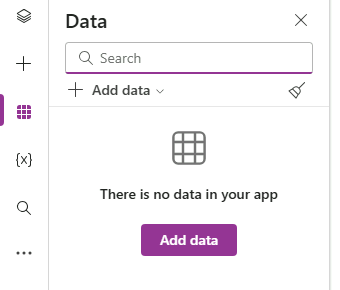
Power Apps Studio Data पैनल जिसमें Add data बटन, Search फ़ील्ड, और data source कनेक्ट होने से पहले खाली-स्थिति टेबल ग्रिड दिखता है

Power Apps परिचय

ClearCollect से collection बनाना


ClearCollect(Tasks,
    {Title: "Summer menu launch", Status: "Not started", Priority: "High"},
    {Title: "Press release draft", Status: "In progress", Priority: "High"}
)
  • Collection एक table है जो app के भीतर रहती है
  • ClearCollect(name, records) इसे खाली करके फिर भरता है
  • हर { } एक record है: Column: value, कॉमा से अलग
Power Apps परिचय

App.OnStart इसे एक बार चलाता है

$$

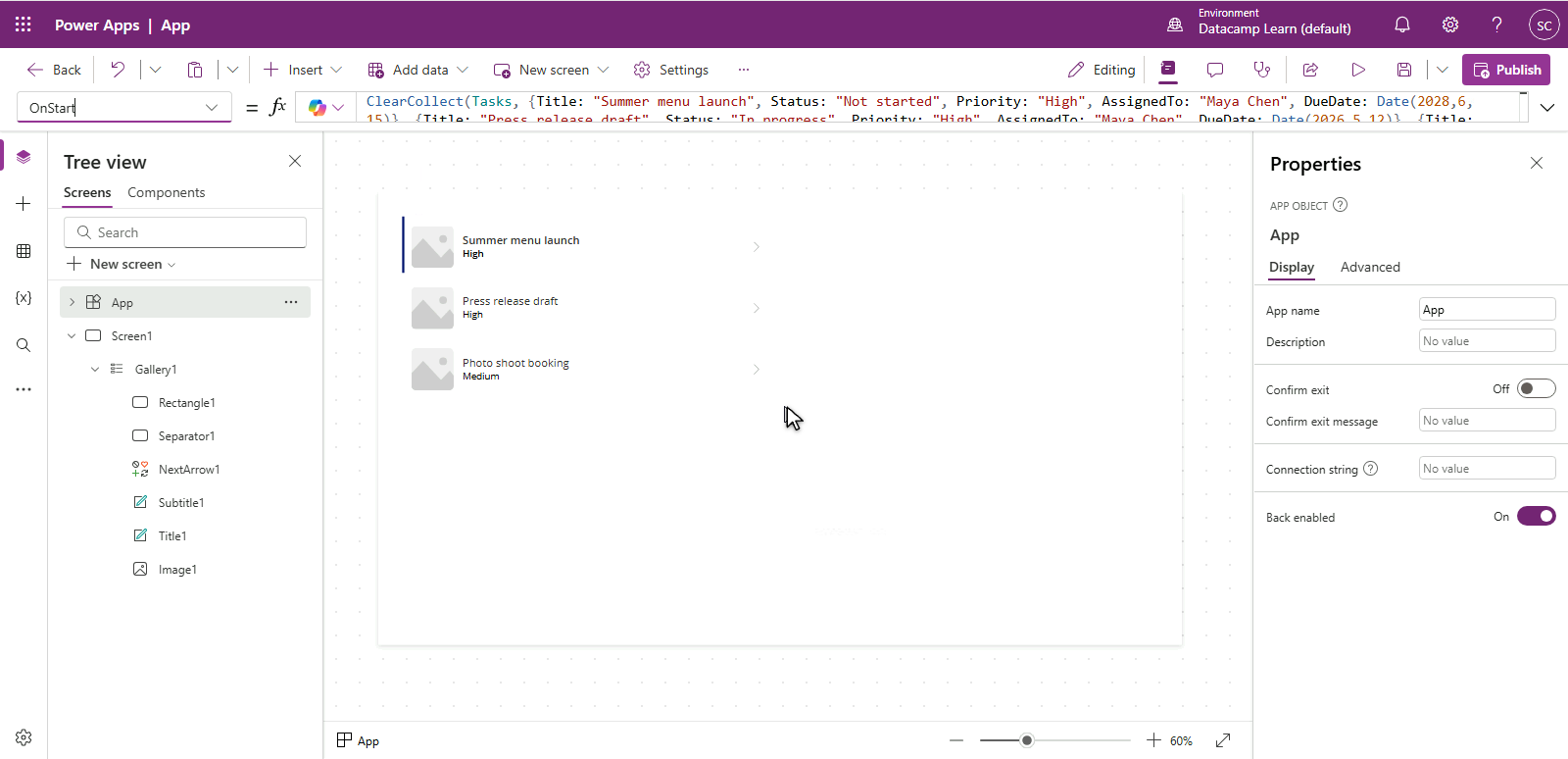
Power Apps Studio में Tree view में App ऑब्जेक्ट चुना है, प्रॉपर्टी ड्रॉपडाउन में OnStart चुना है, और फॉर्मूला बार में ClearCollect(Tasks, ...) फॉर्मूला है


  • ऊपर Tree view में App चुनें
  • फॉर्मूला बार के बाएँ प्रॉपर्टी ड्रॉपडाउन में OnStart चुनें
  • ... → Run OnStart बिना रीस्टार्ट किए डेटा लोड करता है
Power Apps परिचय

Gallery: Power Apps सूचियाँ ऐसे दिखाता है


  • Gallery हर row के लिए एक template दोहराती है
  • Items को किसी table पर सेट करें, जैसे आपकी Tasks collection
  • हर row template की clickable कॉपी होती है

$$

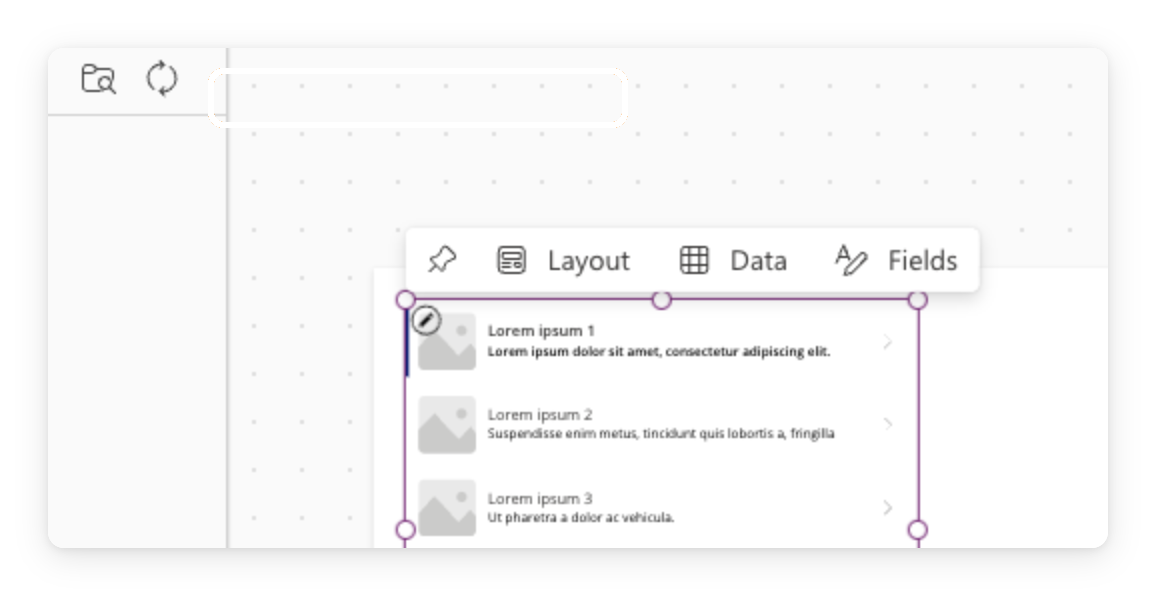
Power Apps Studio का वास्तविक स्क्रीनशॉट जिसमें कैनवस पर एक gallery कंट्रोल है

Power Apps परिचय

आप क्या बनाएँगे

तैयार Lumen Marketing Tasks ऐप का मॉकअप, जिसमें हेडर और चार टास्क कार्ड्स हैं जिनमें टाइटल और स्टेटस पिल्स हैं, गर्म कॉफी-ब्राउन एक्सेंट में


  • एक खाली app बनाएँ और उसका OnStart सेट करें
  • ClearCollect से टास्क्स लोड करें, फिर Run OnStart करें
  • एक gallery डालें और उसके Items को Tasks से bind करें
Power Apps परिचय

अभ्यास करते हैं!

Power Apps परिचय

Preparing Video For Download...